
Option 1: Install a Plugin using Upload Method in WordPress Admin Panel
First you need to download the plugin from your account on wp-buy.com (which will be a zip file) or from your email (the purchase order email sent to you, please check your email spam or junk folders also), then go to your WordPress admin panel. Click on Plugin » Add New. Then click on the Upload Tab.
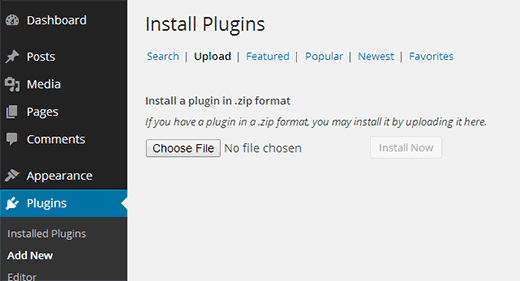
You will see a screen like the one above. Browse the file and upload it (zip files only). You will be taken to the activate plugin page just like this one:
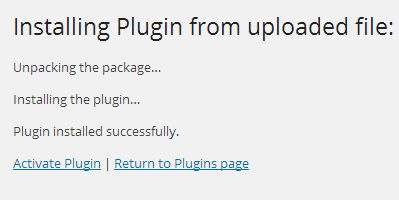
Make sure that you click on Activate the plugin, now you have installed the WordPress plugin. You would have to configure the settings to fit your needs. These settings will vary for each plugin therefore we will not be covering that in this post.
Option 2: Install a Plugin using FTP Manager
If you are very new to the web and have no idea what an FTP Manager is, then this option is not for you. The FTP manager method is the least friendly for beginners out of the three methods that we shared in this post. You would need to access your host through the FTP manager. Access the path (/wp-content/plugins/) And upload files there.
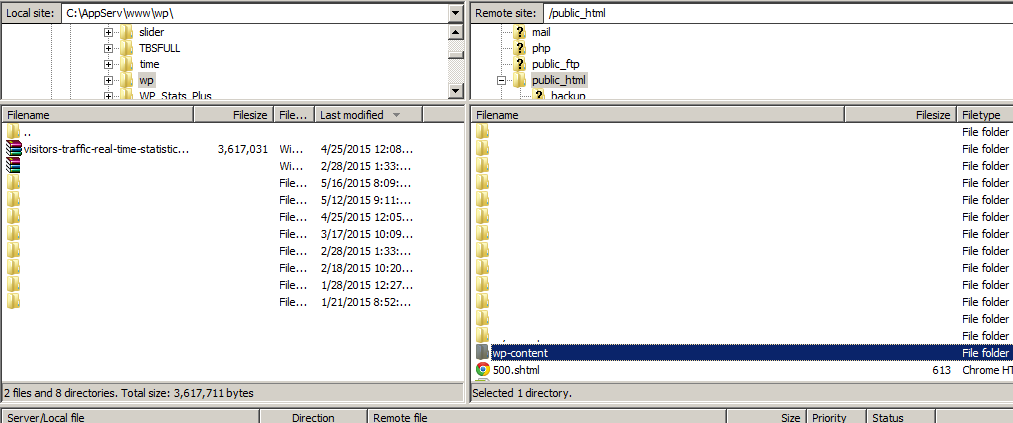
you can download the FileZilla program to access to your FTP, The above screenshot is of an FTP software known as FileZilla program. You can simply drag and drop plugin files. You must make sure that you upload the unzipped folder. Once you have uploaded, then you would need to click on the Plugins tab in your WordPress admin panel.
You will see the plugin you just uploaded. Click on the Activate button and you are done.
The installation way simply by steps & hints:
1- Deactivate & remove the free version
2- Upload & install & activate the PRO one
3- Go to our plugin settings page to configure the settings & save settings
4- Make sure to clear the cache if there is any cache plugin installed
5- Clear your browser cache also, most times this can be done using CTRL + F5 on the wanted page
We hope that this guide was helpful. This was created using the screenshots of version WordPress 4.2. Since WordPress is constantly evolving, we will try our best to keep this guide up to date. If you notice that there is something missing feel free to let us know.



hi i have a mac and i purchased the pro version and i can’t seen to find the file i need to add please can you tell me what the file name will be, i managed to find the folder but no zip file
Hello,
It’s Safari’s default behavior to unpack archives after downloading them. This can be disabled in Safari: Preferences -> General -> Uncheck the box Open “safe” files after downloading at the bottom
if you still have any issue, please contact us via our support center
Failed to install with message: The uploaded file exceeds the upload_max_filesize directive in php.ini.
Help!!!
Hello,
Please contact your hosting provider to increase the limit or just use the FTP to upload the plugin..
i bought pro license before 1~2 hours.
I would like to ask the plugin, is it recorded mobile traffic ?
Hello,
Thank you for using our plugin,
Yes sure..
Where can i set it ?
i use my smartphone including samsung galaxy maga2, iphone 6 to surf my wordpress,
but no any record, only record desktop ip
can i HIDE the free version and still see the statistics in the dashboard?I have it in a widget now
Thanks
mauro
Yes, you can remove the widget and keep the plugin enabled to see the statistics
Is your traffic pro plug good for multiple uses or only one website?
Thank you and please reply to willowofficesolutions@gmail.com
Kathy Kohler
You can use one license for two websites..
one license for two wesites only
Does Visitor Traffic Real Time Stats eliminate the Spam or Bot traffic on the website and only count known valid traffic or do I need another solution to spam?
Yes
I have both your plugin and Google Analytics installed. Your plugin says I have a lot more page views than what Google Analytics says. Why is there a discrepancy between the two?
-D
Because Visitor Traffic Real Time Statistics eliminate the spam & Bot traffic, we only calculate the real visitors from real IP’s
I like your plugin, but I have the same issue with Google Analytics recording low number of sessions; Visitor Traffic RTS records as much as 10 times as many daily visitors to my website. Google only record sessions of visitors that accept cookies, how does VTRTS record visitors to be significantly more accurate?
Hello john,
Thank you for using our plugin,
could you please give me your site URL so i can check somethings to explain the issue for you
the Extended multisite Pro version, is it only for two websites ? Or unlimited ?
hello,
Yes, you can use the extended license for all sites you own, but not for sale..
Thanks
Oh yes yes of course 🙂 I own many sites. 1 page sites for affiliate marketing reviews.
Last question please, does it slow down the website load speed or its totally light ?
No, our products works very perfect with more than 1000 customer over the world
What is the plugin name you are asking about?
the Visitors Traffic Real Time Statistics
good, you can buy the extended version anytime, now there is 30% off
thanks
Can I see real time stats with this plugin – similar to how Google analytics can show how many people are on the site at any given moment?
Thanks
Yes sure
How do I see the number of simultaneous users on at any single time? I only see reports by day.
Thanks
Hello,
If I purchase the pro version of Visitor Traffic Real Time now, would I be entitled to the future version that would eventually include a PDF report as well? Or will there be a charge for that as well?
Thank you
Hello Jerry,
Thank you for using our products,
When we develop this feature, You will receive an upgrade (for free)
thank you